AI assistant
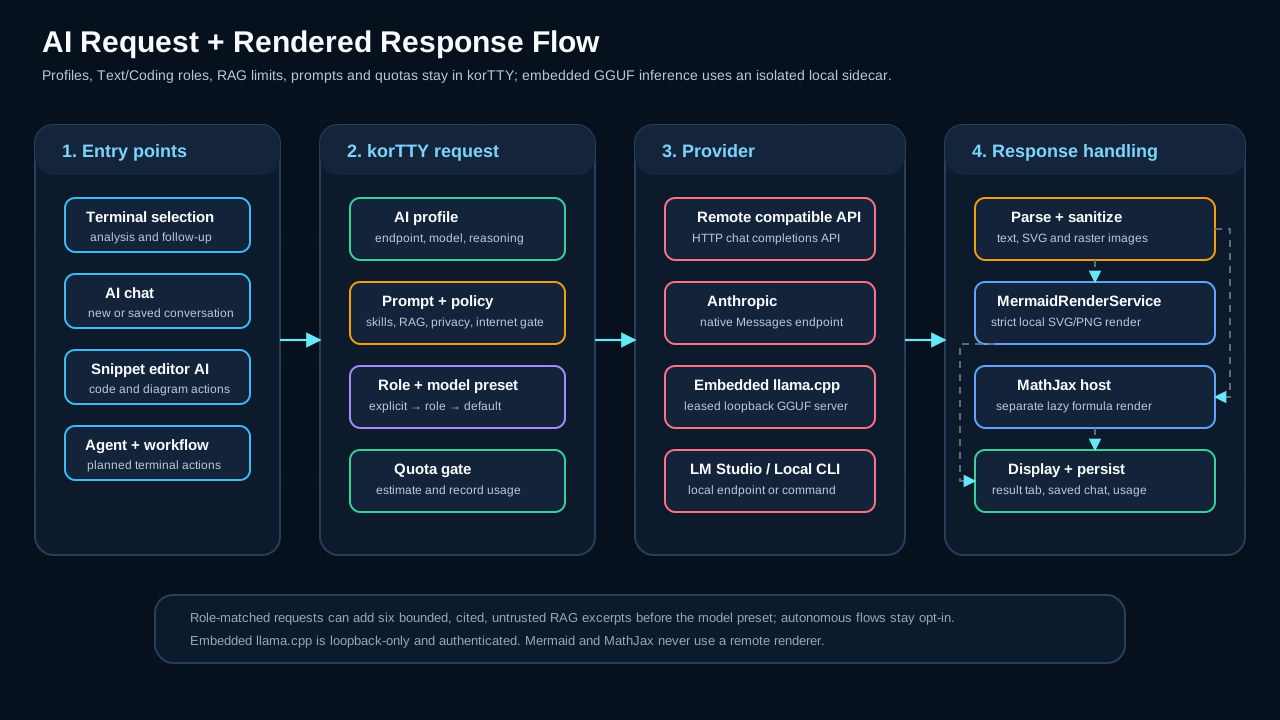
KorTTY can analyze selected terminal text with an OpenAI-compatible AI endpoint, an integrated local llama.cpp model, or a configured local CLI and open the answer in a temporary AI result tab. You can also start agent-style workflows to automate SSH tasks or get plans reviewed before implementation.
When Configuration > Prevent System Sleep is enabled on macOS or Windows, korTTY keeps the computer awake while an AI API, local-model, web-tool, or local AI CLI request is waiting for a result. The assertion is released after the last concurrent AI request finishes; if no terminal is connected and no future or running Scheduler job exists, the computer may then sleep normally. Display sleep remains available.
Data Security
Selected terminal text is transmitted to the configured AI service for analysis. That text can contain sensitive information such as credentials, hostnames, file paths, stack traces, or other operational details. korTTY masks the connection's password and well-known secret formats with *** first (see Masking secrets before sending), but that masking cannot catch every secret. For sensitive data, use an integrated local GGUF model or another endpoint you trust. Embedded inference uses an authenticated loopback-only server; remote providers receive the reviewed request over the network. If you provide an API Key, korTTY stores it encrypted with your master password.
Setup
- Open Configuration > Global Settings.
- Go to AI.
- Create one or more AI profiles in AI > AI Manager > Profiles. Choose HTTP API, Local CLI, Integrated llama.cpp, or Integrated MLX (Apple Silicon) as the connection mode.
- For HTTP profiles, enter an API URL, model, and optional encrypted API key. For an embedded profile, select an installed GGUF model (or an installed MLX model for Integrated MLX); korTTY supplies the private endpoint and temporary key. Use AI Manager > Local Models first when no model is installed.
- Optionally configure Prompt optimization, Max characters, Tokenizer, Token limit, warning thresholds, token reset cycle, Price per 1M tokens (to see AI costs in money; see Token quota management), supported Reasoning effort, and Internet access per profile. korTTY exposes reasoning choices based on the configured endpoint and model; LM Studio's exact native capability metadata takes precedence over compatibility probes so a silently converted effort is not shown as supported. Profiles without a supported explicit reasoning mode keep provider-default behavior.
- Optionally set an AI request timeout in minutes. korTTY does not time out AI requests on its own, so a long task such as the snippet editor's Full code analysis runs until the model answers. The value at the top of the profile editor's Limits & timeouts section applies to every profile; Timeout for this profile below it overrides it for a single profile, and 0 there means that profile never times out. See AI settings.
- Click Test AI Connection. The result appears in a coloured bar under the profile name: green when the connection works, red with the error message when it fails or when something is still missing (the API URL, the model, or an internet-access setting). The status line at the bottom repeats it, and the bar disappears when you save the profile or select another one.
- Optionally choose a Default profile (in the AI Manager: tick Use as default profile next to the profile name), then assign separate Text/translation and Coding roles under AI Manager > Local AI > Profile roles. An empty role uses the default profile.
- Optionally configure the default language for AI-generated text inside code comments and program output, enable the extra instructions field for snippet AI actions, and set how many alternative solutions the snippet editor should request.
- Optionally configure the terminal-agent input-history size (default 20, range 5–100), the agent command name, case-insensitive command matching, execution target, prompt-hook usage, per-run setup dialog, debug/runtime visibility, and activity-panel preferences for AI Agent and AI Planning.
- Optionally disable the confirmation dialog for Summarize and Solve Problem if you want a faster workflow. Ask always opens the prompt dialog.
AI Profile Setup Wizard
A guided wizard creates AI profiles for a cloud service, a local AI server, or a local command-line tool.
To open the wizard:
- AI > AI Manager > Profiles, click Setup wizard.
- korTTY also offers it when you start an AI Agent, AI Planning or Ask Agent run without any usable AI profile.
A sidebar lists the stages and, under every stage you have passed, the choice you made there; clicking a passed stage goes back to it. The wizard guides you through:
- Quick start - korTTY looks for LM Studio (port 1234) and Ollama (port 11434) on this computer, on every computer listed under Other computers on the network (a host name or address,
host:port, or anhttp://URL, comma-separated; the list is remembered asaiWizardScanHosts) and on the hosts of your existing HTTP profiles, and for installed command-line tools. Create profile next to a found server or tool fills in the connection and jumps to the name step; Enter URL next to a server that did not answer starts the server path with its URL filled in; Search again repeats the scan. Cloud service with API key and Enter a server or tool yourself start the manual path. - Connection type - Choose Cloud service (API key), Local AI server (for example LM Studio or Ollama running on your machine), or Local command-line tool (a CLI such as Claude Code or Codex that is already installed). The three choices are cards with a description.
- Provider, server or tool - For a cloud service, pick a tile: OpenAI, Anthropic (Claude), Google Gemini, Mistral, DeepSeek, Groq, OpenRouter, MiniMax, or Other / OpenAI-compatible with your own API URL. For a local AI server, paste its API URL and an optional key, then choose Auto or pick a model. For a local CLI, choose the tool; korTTY checks that it is installed, and LM Studio's
lmstool adds a model picker. - Access and model - For a cloud service, enter the API key, then select or enter the model; Load models merges the endpoint's live model list on top of the examples. The Advanced: reasoning section starts collapsed; it sets Reasoning to Model default or Set level with a level, and only the levels the endpoint and model support are offered. Model default sends no reasoning parameter, which means that a model that thinks by default keeps thinking. The level
noneswitches reasoning off. - Name it - Enter a display name for the profile; Use as default profile is selected by default.
- Test and finish - The wizard tests the connection as soon as the step opens and shows the result above a summary of every choice, each with a Change link back to its step. Test again repeats the test; Skip test continues without it.
Native Anthropic (Claude) API support is included alongside existing OpenAI-compatible endpoints.
For fully integrated GGUF inference, use the separate AI Manager > Local Models > Setup assistant. It checks hardware, recommends Text/Coding/embedding models, reviews license and exact size, verifies the immutable download, creates an embedded profile, assigns the selected role, and runs a real local chat or embedding function test. See Local models with llama.cpp.
Model selection
The model selector in AI > AI Manager > Profiles is editable:
- For known cloud providers the dropdown is pre-filled with common model names for the configured endpoint, so a concrete model can be chosen without an API key. The refresh button next to the selector merges the endpoint's live
/v1/modelslist on top when the API key is valid. - Choosing a listed model stores it as the manual selection.
- Typing a model name stores it as the manual selection so any OpenAI-compatible endpoint works.
- Auto is offered only for local LM Studio endpoints, where korTTY can actually detect the loaded model. Cloud profiles need a concrete model; if none is selected, requests stop with an explicit "select a specific AI model" error.
- An Integrated llama.cpp profile lists the installed chat models from
~/.kortty/llm/models.xml; an Integrated MLX profile lists the installed MLX models instead (Apple Silicon only). Neither uses the HTTP URL or the manual cloud-model field.
Role routing, RAG, and prompt order
korTTY classifies its own action types deterministically without asking a model. Translation, summary, problem solving, questions, prose descriptions, and AI ASCII-art pictures use the Text role; coding, completion, snippet review, security fixes, diagrams, and workflow generation use the Coding role. An explicit profile choice, security-check profile, or connection-specific profile takes precedence, followed by the role profile and then the default.
When matching knowledge stores are assigned to the request's Text or Coding role, an ordinary AI request is assembled in this order: korTTY's action/output contract, selected AI Skills, bounded untrusted RAG context with [R1] source markers, the resolved model-family preset, and finally the provider transport. Only retrieved excerpts are added, not the complete knowledge store; choosing a cloud profile sends those excerpts to that provider, so the knowledge-store role/profile assignment is the explicit disclosure decision. Strict JSON and code-payload rules remain authoritative. The dedicated source-only diagram request used by snippets and workflows is a narrow exception: after its fixed output contract korTTY always adds one compact, immutable action skill for the requested diagram family (logical-structure flowchart, sequence, state, class, or ER) and omits every configurable library skill and retrieval context. For a profile with a fixed model selection, korTTY automatically sets the request-scoped Reasoning value to none only when that value is available, without changing the saved profile. The action skill is not one of the 39 shipped configurable built-in skills: users cannot disable or edit it, and it adds no matching/classification request. The Full code analysis stages that apply selected improvements and its security-fix follow-up use the same fixed-model rule because they return bounded, machine-parsed full-script replacements; the preceding analysis still uses the profile's configured Reasoning value. An Auto profile is not overridden from previously discovered capabilities because its loaded model can change; an explicitly configured none value still applies. Autonomous Agent, Planning, Swarm, and scheduled prompts require explicit RAG opt-in. See RAG knowledge stores for the retrieval and privacy details.
Local LM Studio model selection
For local LM Studio profiles, korTTY can discover currently loaded LLM model keys and exact reasoning options through LM Studio's GET /api/v1/models endpoint. A binary model that reports only off and on therefore no longer shows the Minimal, Low, Medium, High, or Extra high levels as supported merely because LM Studio would silently convert an unsupported value; an explicit none request switches this feature off, while omitting the reasoning parameter uses the model's published default.
Auto mode resolves the effective model immediately before connection tests, AI chat and follow-up requests, terminal AI actions, and Terminal AI Agent runs. If exactly one LLM is loaded, korTTY uses that model. If multiple LLMs are loaded, korTTY uses the saved preferred model only when that model is currently loaded. If no LLM is loaded, or multiple LLMs are loaded without a valid saved preference, korTTY stops the request with an explicit error instead of guessing.
AI internet access
Internet access is configured per AI profile. Existing and new profiles default to Disabled.
| Mode | Behavior |
|---|---|
| Disabled | No web tools or MCP integrations are sent with AI requests. |
| KorTTY Tavily Tool | korTTY adds a web_search and a web_extract tool to eligible OpenAI-compatible /v1/chat/completions requests. Tool calls are executed by korTTY: searches through POST https://api.tavily.com/search (5 results with short snippets), page reads through POST https://api.tavily.com/extract, which returns the text of one web page or online document, capped at 12,000 characters. |
| LM Studio Tavily MCP | korTTY sends an LM Studio native /api/v1/chat request with a Tavily MCP integration. |
| Bright Data Web MCP | korTTY sends an LM Studio native /api/v1/chat request with a Bright Data MCP integration. |
| Brave Search MCP | korTTY sends an LM Studio native /api/v1/chat request with a configured Brave Search MCP plugin ID. |
| SearXNG MCP | korTTY sends an LM Studio native /api/v1/chat request with a configured SearXNG MCP plugin ID. |
| LM Studio Toolpack | korTTY sends an LM Studio native /api/v1/chat request with the configured LM Studio Toolpack MCP plugin ID. |
Required provider configuration is entered under AI > AI Manager > General > Internet access. API keys and tokens are stored encrypted with the master password. MCP server labels and plugin IDs are stored as normal settings.
Important behavior:
- Snippet AI, text correction, translation, snippet descriptions, alternative-solution requests, and AI ASCII-art generation do not use internet access.
- Local CLI profiles have no internet access: their Internet access field is disabled.
- Integrated llama.cpp and MLX profiles support only Disabled and KorTTY Tavily Tool; the LM Studio MCP modes are refused for them.
- Direct korTTY web tools have a 5-second connect timeout, a 20-second request timeout (40 seconds for page reads), and a maximum of two web-tool rounds with up to three tool calls each per AI request.
- A mode can only be selected in a profile once its required global setting (for example the Tavily API key) is stored under AI > AI Manager > General > Internet access; otherwise the AI Manager explains where the value belongs and keeps the previous mode. The profile's own API Key field is only for the AI provider itself.
- Profiles on the native Anthropic Messages API (an API URL ending in
/v1/messages, such ashttps://api.anthropic.com/v1/messages) do not support internet access, because korTTY sends no web tools to that API. The Internet access dropdown is locked to Disabled for them and a hint below it says why. A profile that still carries another mode from an earlier version keeps working without web access; it shows Disabled as soon as you open it, and saving stores that value. - Internet use is shown where it happens. In the AI chat, a collapsed Internet research line above the reply summarizes the searches, page reads and failures; expanding it lists every query, read URL, source and error. It is stored with saved chats. In the Terminal AI Agent, each step that used the internet gets a Web research activity row with the same details. For LM Studio MCP modes korTTY shows the tool calls LM Studio reports, with the URLs found in their output.
- LM Studio MCP requests with internet access use a longer total request timeout because the MCP server runs behind LM Studio.
- Canceling a running request interrupts the Java HTTP request where the active provider supports interruption.
- Tool errors are returned to the model as structured data. If the web tool times out, fails authentication, returns no results, or reaches the tool-round limit, the model is instructed to say that explicitly and not invent web facts.
- For terminal-agent JSON planning, korTTY offers its direct web tools only when the user task contains a web signal word (for example current, latest, search, research, docs, changelog, CVE, website, download, version) or a URL. Local file/script review tasks should be handled by shell commands such as
sed,cat,find, or test commands, not by web search. Enable AI agent: offer internet research on every step under AI > AI Manager > General > Internet access to offer the tools on every agent step and let the model decide; this uses more Tavily credits and tokens. LM Studio MCP modes always attach their integration to agent steps.
AI Skills
AI Skills are reusable local instruction blocks that korTTY can add to AI requests. Use them for persistent preferences such as coding standards, review rules, operational policies, or language-specific style guidance.
Open AI > AI Manager > AI Skills. The library moved here from the global settings dialog; Save writes it immediately, and pending edits are also saved when the AI Manager is closed.
Skill fields
- Skill name - Human-readable name shown in the skill list and activity logs.
- Description - Short explanation used by automatic skill matching.
- Tags - Comma-separated keywords used by automatic skill matching.
- Target -
AI Chat/Functions,AI Agent, orBoth. - Active - Enables or disables only this skill.
- Skill Markdown - The instruction body sent to the model when the skill is selected.
Controls
- Enable AI Skills disables or enables all skills globally.
- Automatically send only matching skills sends only active skills that match the current request — at most the two highest-scoring matches; skills assigned to the active connection or explicitly selected in the snippet editor's AI skills picker are added on top of that limit. When disabled, all active skills with a matching target are sent.
- Add creates a new active skill with target
Both. - Delete removes the selected skill after confirmation.
- Import accepts
.mdand.markdownfiles. - Export writes Markdown files for the selected skill, or all skills if none is selected.
- The skill list can be sorted alphabetically or by enabled/disabled status.
- Statistics opens how often each skill was used and how large it is, with hints for skills to review; see Skill statistics.
Import/export format
---
kortty-ai-skill: 1
name: My Skill
description: Short purpose statement
enabled: true
target: BOTH
tags: [linux, bash]
---

Skill instructions as Markdown.
Plain Markdown without korTTY frontmatter is imported with the file name as the skill name, target Both, and disabled by default so you can review it before use. Claude/Codex-style SKILL.md frontmatter with name, description, and tags is also accepted and imported disabled by default unless it is korTTY's own export format.
A file that holds a possible password, key or token is refused on import; see Secrets in skills.
When an AI Agent run uses one or more skills, the terminal-agent activity panel logs the selected skill names. Connection tests never send skills, so Reply with exactly OK tests remain stable.
Terminal selections
Using AI for selected text
- Select text in the terminal.
- Right-click the selected text.
- Open AI and choose:
- Summarize - Creates a concise summary of the selected output.
- Solve Problem - Analyzes the selected error output and suggests likely fixes.
- Ask - Sends the selection together with your own follow-up question or instruction.
- Confirm the request in the preview dialog. The preview shows the text as it will be sent: secrets korTTY recognized are already replaced with
***, and a line above the text says how many (see Masking secrets before sending). You can edit the selected text before sending it. For Ask, add your own prompt. The dialog also shows the estimated request tokens and projected remaining quota. - The response opens in a temporary AI tab. You can continue the same context with follow-up prompts from the bottom composer field.
- Use Save in the AI tab to store the conversation under a custom title.
- Reopen saved conversations later via AI > Saved Chats....
Summarizing recent output without a selection
Right-click a terminal pane without selecting anything and choose AI > Summarize Recent Output, then a profile. korTTY sends what the pane printed last:
- the output of the last finished command, the same text Copy Last Output copies, when shell integration marks the pane's commands,
- otherwise the last 200 lines of the pane.
Either way the text is cleaned of terminal escape sequences and limited to the last 16,384 characters (and to the profile's selection limit, if that is smaller), so the newest output is what goes out. It then takes the same path as a selection: secrets are masked first (see Masking secrets before sending), the preview dialog shows the exact text unless you turned it off for Summarize, and the chat's code blocks go back to the pane you right-clicked (see Code blocks in the terminal). While a full-screen program such as an editor or pager runs, or the pane is empty, the status bar says there is nothing to summarize. When your organization's policy does not allow AI chats, the entry is shown greyed out.
Masking secrets before sending
Before a terminal selection goes to an AI profile, korTTY replaces the secrets it recognizes with ***:
- the password of the tab's connection,
- the replacement rules of your organization's policy (the same
[[rule.session-journal.replace]]rules the session journal applies, see Enterprise policy), - well-known token formats: private-key blocks (PEM, OpenSSH, PGP — also when the selection ends inside the key), AWS access keys and secret access keys, GitHub, GitLab and Slack tokens,
sk-style API keys (OpenAI, Anthropic),Authorizationheaders and bearer tokens, JSON Web Tokens, passwords in URLs such aspostgres://admin:***@db, and assignments whose name ends in a secret word, such asDB_PASSWORD=…,api_key: …or--password=….
A short, harmless prefix stays visible — the key's BEGIN and END lines, ghp_***, AKIA***, the variable name, the URL's user — so you can still tell what was there. The preview dialog shows the masked text and the number of masked secrets. Without a preview — when the confirmation dialog is turned off for Summarize and Solve Problem, and for Ask Agent… — the status bar shows the number instead. An attached file (see below) is masked the same way; it is not part of the preview, so its masked secrets are counted in the status bar.
Integrated models (llama.cpp, MLX) run on this computer and receive the text unchanged. An HTTP endpoint on localhost is masked as well, because it may be a proxy or an SSH port forward that passes the text on to a cloud API. If such an endpoint really runs the model on this computer, LM Studio for example, turn on Trusted local endpoint in the profile (see AI settings); the option only takes effect for an API URL on localhost or 127.0.0.1. Local CLI providers send the prompt to their vendor and are always masked.
The AI tab's profile can be changed for follow-up prompts. Before each follow-up, korTTY masks the selection, the attached file and the earlier conversation again for the profile the tab uses now, so a chat that started on an integrated model does not hand the unmasked text, or an answer that quoted it, to a cloud profile.
The AI Agent masks what it sends the same way, with the same exemptions: the environment probe, the output of every command it ran, the planning questions, options and report, and the retries that ask the model to repair a reply. AI Swarm agents do the same for each server, and so does the request that combines their answers into the comparison table. A scheduled AI Agent job masks its request too, with the server's stored password and the job's sudo password; that request carries only the server name, the working directory and the job prompt, so this only catches a secret typed into the job prompt. Besides the connection's password, a sudo password you typed during the run is masked from then on. A Masked before sending entry in the agent's activity panel says how many different values were masked in the run, counting a value the agent resends every turn only once, and a planned command that contains the *** placeholder is not run. The run itself keeps the original text — the terminal, the activity panel, the approval dialog and the session journal show what really ran and what it printed. See Masking what the agent sends.
Masking is not complete
Masking recognizes only the formats listed above. A secret in another format — an internal token, a password shown by another program, a value split across lines — is sent unchanged, so review the preview before sending and prefer an integrated local model for sensitive output. Masking covers terminal selections, their attached files, what the AI tab sends of them again with a follow-up, everything the AI Agent and AI Swarm agents send to the model, the request that combines a swarm's answers and the request of a scheduled AI Agent job. Text you type yourself in an AI chat is not masked.
Attaching a selected file to the chat
When the selection looks like a single file name — for example a name from ls output, quoted if it contains spaces — korTTY offers to send that file's content along with the request, so the model can take the file into account instead of only its name. The file is resolved against the pane's current directory, over SFTP in SSH tabs and from the local filesystem in local-shell tabs, exactly like Open in Snippet Editor.
- The confirmation dialog shows an Attach file checkbox with the file name. It is pre-selected, and you can clear it to send only the selected text. While the file is being checked, OK waits; clear the checkbox to send without waiting.
- Before anything is attached, korTTY verifies that the file exists in the current directory, is a regular file, is readable with your permissions, decodes as UTF-8 text, and fits into the profile's Max characters limit (see AI settings) together with the selected text. Binary files, oversized files, and files that fail any check are not attached; the dialog states the reason and the checkbox is disabled.
- When the confirmation dialog is disabled for Summarize and Solve Problem, and always for Ask Agent… (which has no preview dialog), the file is attached automatically if it passes the checks; otherwise the request is sent without it and the status bar says why.
- Before it is sent, the file's content is masked like the selection (see Masking secrets before sending); the chat keeps the masked content.
- No attachment is offered after an identity switch inside the session (
su, an innerssh), because the file would be resolved against the wrong login — the same rule that greys out Open in Snippet Editor. - The attached file is listed above the chat messages, stays in context for every follow-up prompt, and is stored with a saved chat so a reopened conversation keeps it.
- The Flowchart button beside the attachment asks the active profile for a Mermaid flowchart of the attached script (the same logical-structure diagram the Snippet Editor generates) and shows it as a rendered diagram in the chat. If the model's answer is unusable, korTTY draws the local structural flowchart instead.
AI result tab features
- The conversation transcript is read-only and not included in saved project/session state.
- Assistant answers display Markdown as a formatted preview: headings, bold and italic text, strikethrough, lists, quotations, and highlighted inline code. Text wraps to the available width and can be selected and copied; user messages keep their literal text.
- The conversation automatically scrolls to the newest user message or assistant answer, including content that grows after rendering. Scroll up with the mouse wheel, keyboard, or scrollbar to pause this behavior while reading earlier messages. Scrolling back to the bottom automatically resumes it.
<think> ... </think>blocks are removed from the visible output.- Live answers. With a profile that talks to an OpenAI-compatible endpoint, including the integrated llama.cpp and MLX models, the answer appears while the model writes it, as plain text in a block at the end of the chat, with the model's reasoning in a collapsed Reasoning disclosure and the status line saying Receiving the answer.... When the answer is complete it is replaced by the formatted answer, and only then do code blocks get their copy, snippet, Insert and Run buttons, so nothing can be inserted or run from a half-received block. If the model starts over, for example after a cut connection, the preview starts over too. Anthropic, LM Studio's native API and local command-line tools return the whole answer at once, so with them the chat waits with its elapsed-time status as before. The live preview applies to chat questions and follow-ups, not to the AI agent or AI Swarm.
- The toolbar lets you copy the conversation, save or rename the chat, share/export it to PDF/Markdown/plain text, retry the last request, close the tab, cancel running requests, and change the font size.
- Closing the chat tab cancels a request that is still running, including a question sent to all open terminals, whether you close it with its close button, Close Tab (Ctrl+W, Cmd+W on macOS), Close Other Tabs, Close Tabs to the Right, Close All Tabs, by opening a project or by closing the window.
- The response language defaults to the current GUI language. You can change the response language and the active AI profile per chat before sending a follow-up prompt.
- Follow-up prompts in Summarize and Solve Problem continue as normal chat questions; they are not forced back into the original summarizing/problem-analysis prompt.
- Detected code blocks get their own copy button and can also be saved directly into the Snippet Manager, inserted into a terminal pane or, for a single shell command, run there — see Code blocks in the terminal. Blocks that contain images, diagrams, or math render as images instead — see Rendered images, diagrams, and math.
- Rendered markdown tables can be copied as a whole table, a single column, or a single cell.
- The chosen AI tab font size is stored globally and reused for future AI result tabs.
- Token usage is recorded per AI profile after successful requests so warnings and reset cycles remain accurate. AI Swarm agents, scheduled AI jobs and session journal calls count towards the same quota.
- If a saved chat references an AI profile that no longer exists, korTTY asks you to choose a replacement profile before you continue with follow-up prompts.
- Sent along. A collapsed line under each answer lists the memory entries, skills and reference files that were sent with the request, masked as they were sent, with their token counts; see AI memory.
- Remember as rule… on one of your own messages opens the rule card without an AI call. The card shows the text and where it would be stored, and nothing is saved before you press Save.
- Rule suggestions. In Suggest rules learning mode a message that says something should be kept for later can produce a suggestion card under the answer. Nothing is saved until you press Save, and Undo reverts a saved rule for 30 seconds.
Code blocks in the terminal
Code blocks in a chat answer have two more buttons beside the copy button. Insert types the block at the prompt of a terminal pane without pressing Enter, so you can read and change it before you run it. Run appears only on blocks in a shell language (```bash, ```sh, ```zsh, ```shell, PowerShell, or an unlabelled block that starts with such a shebang) and runs one command line: it always asks first, in a confirmation that names the pane and shows the exact line, and Cancel is the default button, so pressing Enter by habit runs nothing.
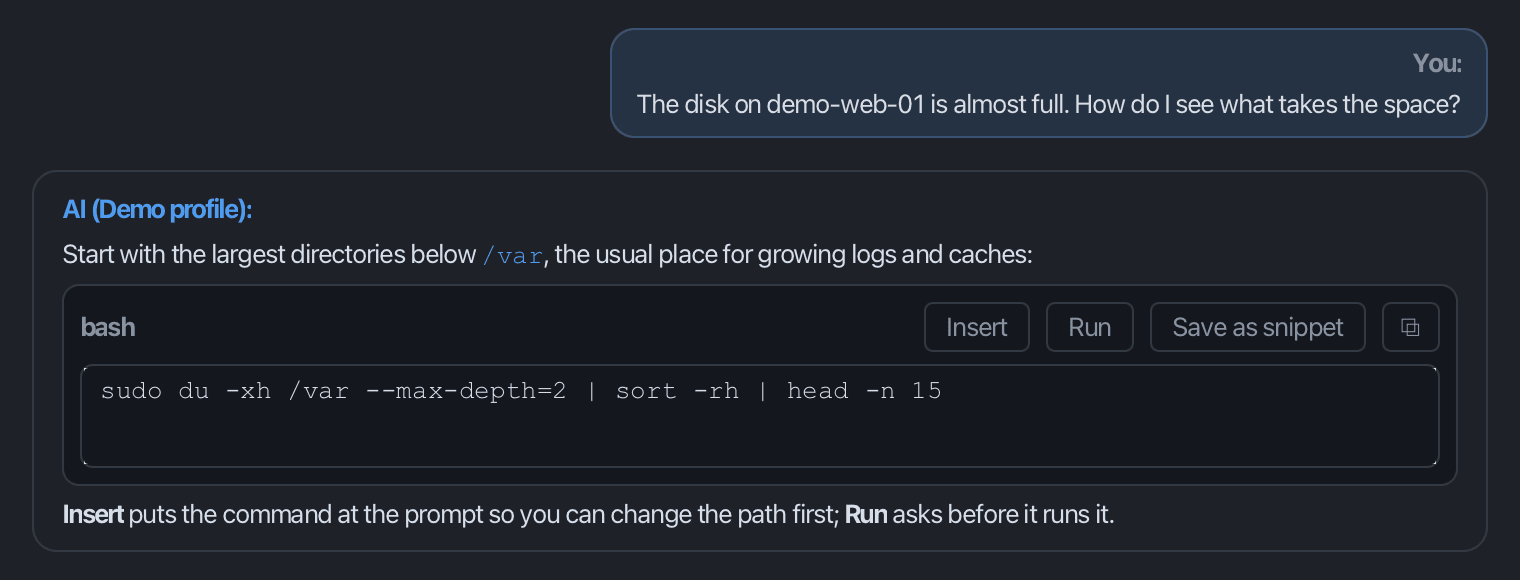
- Which pane. A chat opened from a terminal (the selection actions and Ask Agent…) sends to the pane it came from while that pane is open. Otherwise, and for a reopened saved chat, it sends to the focused pane of the terminal tab a snippet would go to. The tooltip of each button and the Run confirmation always name the pane, as the tab title plus the pane number in a split tab.
- Insert goes through paste protection with stricter rules than a clipboard paste: a block with a line break or with control characters always asks, whatever the pane's paste settings say, and control characters and invisible direction-changing characters are removed before the text is typed. The line breaks a block ends with are dropped, so a single line is never submitted. Inside a block of several lines each line break still acts like Enter unless the program in the pane uses bracketed paste; the paste confirmation says which applies. If you decline that confirmation, or the pane cannot take the text, the status bar says that nothing was inserted.
- Run takes a single line. A block of several lines shows Run greyed out; insert it instead. A shell block with a tab, an escape sequence, another control character or a direction-changing character offers no Run at all.
- Greyed out up front. A button that cannot act right now is greyed out, and its tooltip says why: no open terminal pane, a pane that is not connected, broadcast mode or multi-exec mirroring the pane's input to other panes (AI text is never sent there), a coding agent in the pane waiting for an approval, an AI agent at work in the pane (and, for Run, any coding agent), a full-screen program such as
vimor a paste still being sent, a block that contains the mask placeholder***of a secret masked on the way to the AI, or your organization's policy. Run is also refused while shell integration reports a command still running in the pane. The verdict is checked again right before anything is sent, also after the Run confirmation. - Without shell integration korTTY cannot tell whether a shell prompt is waiting, for example inside
mysqlorpython, so the Run confirmation says so; the line goes to whatever program reads the pane. - After
su,sudo -ior a nestedsshthe Run confirmation warns that the pane may be logged in as another user or on another host: the line runs as whoever that shell is. - The answer is untrusted. Terminal output the AI has read can steer what it suggests, so read every part of a command before you run it.
Choose which buttons appear under AI → AI Manager → General → AI chat code blocks in the terminal: Insert and Run (the default), Insert only, or Off (copy and save only). With the ai-chat policy denied both buttons are greyed out, and with ai-agent-execution = "read-only" Run is greyed out; see Enterprise policy.
Rendered images, diagrams, and math
AI answers that contain images, diagrams, or math formulas are rendered as images inside the chat instead of showing raw markup. This also applies to saved chats reopened from the AI Manager.
| Content in the AI answer | Rendered as |
|---|---|
```svg / ```xml / ```html code block (or untagged block) containing an <svg> document |
Inline vector image |
Markdown image link with a data:image/png;base64,… URI in the answer text, or a code block containing only such a data URI |
Inline raster image (PNG, JPEG, GIF, BMP; up to 8 MB decoded) with a copy image button |
```mermaid code block |
Mermaid diagram (bundled library, no network) |
```latex / ```tex / ```math code block, or $$ … $$ math in the answer text |
Typeset formula (bundled MathJax, no network) |
Every rendered block keeps a header with the usual copy button and a Show code / Show image toggle, so the underlying source stays one click away. While a Mermaid/math block is still rendering, the source remains visible; if rendering fails (for example a Mermaid syntax error), the block stays on the source view and the header shows the reason. plantuml/puml fences and untagged @startuml content are ordinary source-code blocks and are not rendered specially.
Example prompts that produce rendered answers:
Draw a simple house as an SVG image.
Create a Mermaid flowchart of a typical login flow.
Create a Mermaid sequence diagram for an SSH handshake.
Explain the Pythagorean theorem and show the formula.
A Mermaid answer fenced with the mermaid language tag and this body renders as a flowchart:
And display math in the answer text renders as a typeset formula:
Rendering details and requirements
- SVG and rendered Mermaid output is displayed with JavaScript disabled and scripts/event handlers stripped from the document.
- Mermaid 11.17.2 runs with its
strictsecurity level from a SHA-256-pinned local bundle; LaTeX is typeset by a separately loaded local MathJax bundle. Neither needs internet access. - Chat Mermaid retains the full bundled diagram support, including flowchart, sequence, class, state, ER, mindmap, and architecture diagrams. Frontmatter, directives, network/file/data/JavaScript URLs, external images/icons, links, and click callbacks are rejected; source, edge-count, raster-size, and timeout limits protect the renderer.
- Full LaTeX documents (
\documentclass) intentionally stay code blocks; only formulas are typeset. - Mermaid follows the active chat's light/dark palette; other rendered images and formulas retain a readable neutral canvas.
AI Manager
Open AI > AI Manager or press ++Ctrl+Shift+Y++ (++Cmd+Shift+Y++ on macOS).
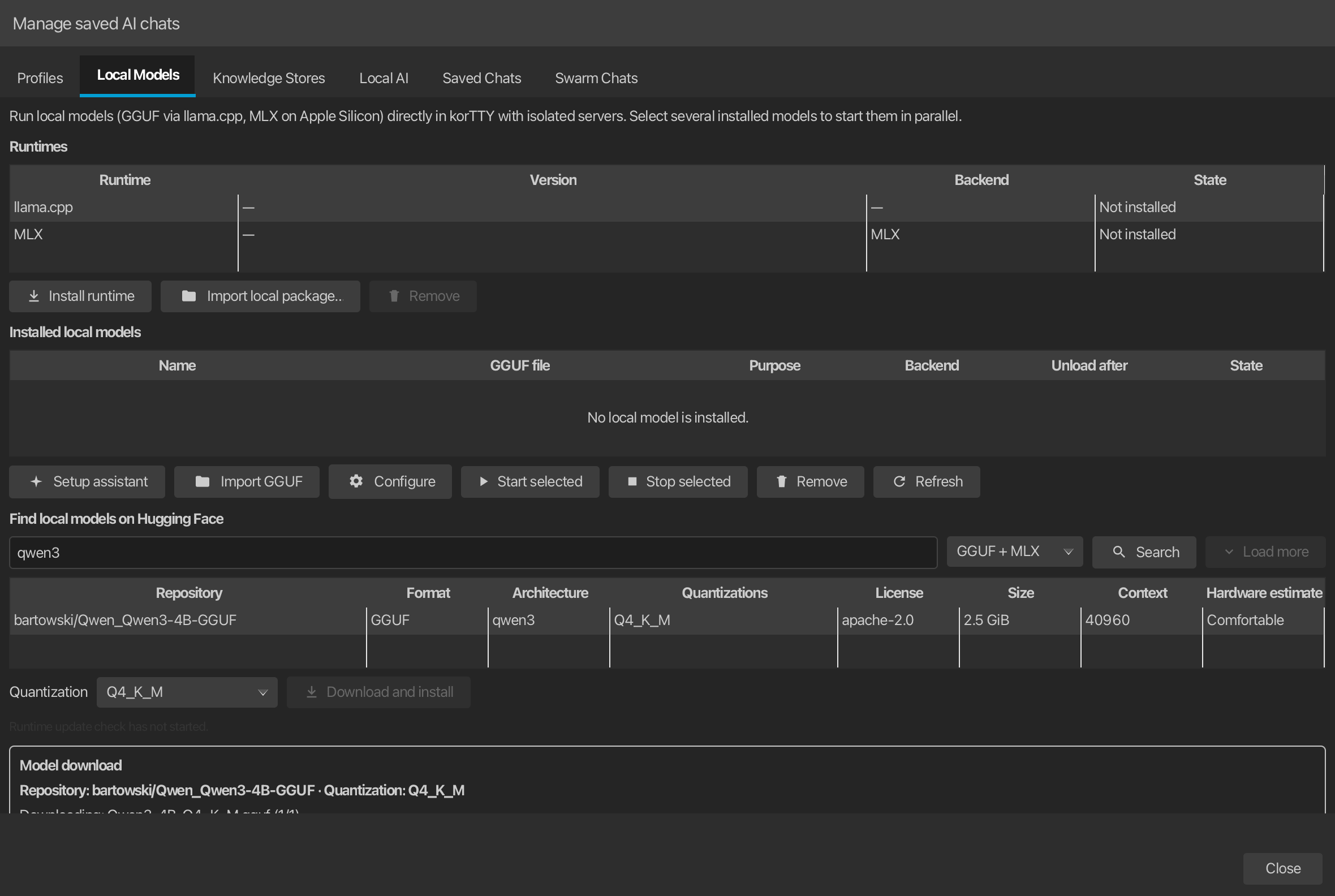
The AI Manager is a modeless window: you can keep it open while you continue working in the main window. Invoking AI Manager again restores and focuses the same manager for that main window instead of opening a duplicate. Its active primary section remains marked by a bold accent underline after focus moves into the section's controls.
The manager combines profile, local-inference, retrieval, and skill management:
- Profiles - Create, edit, test, save, and remove AI profiles. The profile list shows the current quota/usage status for each profile. The editor keeps Profile name and Use as default profile at the top and groups the fields into four sections: Connection, Model & capabilities, Limits & timeouts and Budget & usage. The Connection and Model sections show only the rows of the selected connection mode (the URL and key rows for HTTP API, the CLI rows for Local CLI, a note for the integrated runtimes). Test AI Connection shows its result in a coloured bar under the profile name (green on success, red with the error). Setup wizard, Add and Refresh act on the list and sit above it; Test AI Connection, Delete and Save act on the selected profile and sit under the editor.
- Local Models - Search Hugging Face, import/download/configure GGUF files, run the post-install function test, and start or stop several llama.cpp sidecars.
- Knowledge Stores - Create local HNSW stores, add reviewed files or recursive folders, synchronize sources, and run a test search.
- AI Skills - Manage the skill library described under AI Skills and its statistics.
- Memory - The korTTY memory that chat and agent requests carry: the global and the per-connection memory, the token budget, learning, clean-up, history and the other memory files. See AI memory.
- Local AI - Three sections: Profile roles assigns the Text/translation, Coding, AI agent profile and session journal profiles; Local runtime selects the runtime-update policy, the preferred runtime backend and the RAG embedding model; Hugging Face stores an encrypted Hugging Face token. Save under the sections writes all of them.
Saved chats are not a tab of the AI Manager. AI > Saved Chats... opens them in their own window, with a Chats tab for saved AI conversations and a Swarm Chats tab for saved AI Swarm conversations, including those produced by scheduled swarm jobs. There you can open, rename, refresh, or delete an entry. Chats continued from an agent run are listed in the Chats tab as well, see Chats from AI agent runs.
The AI Manager has a search line at the top, like the settings dialog; see Searching the AI Manager.
Use AI > AI Manager > General for global behavior switches and the other AI Manager tabs for day-to-day profile, model, knowledge-store, and chat management.
Ask the manual (AI docs search)
The built-in manual (Help > Manual, F1) includes an AI-powered search. Toggle AI search in the manual window's toolbar to open a side panel, type a question in natural language — for example "How do I run the AI agent in the terminal window?" — and press Enter.
How it works:
- korTTY selects the most relevant sections from the bundled offline manual (no embeddings, no external search service) and sends only those excerpts together with your question to your default AI profile.
- The answer is generated exclusively from the manual content and is written in the app language. If the manual does not cover the question, the assistant says so instead of guessing.
- Answers cite their sources: click an inline citation or an entry in the Sources list to jump the manual view directly to the referenced page and section.
- If nothing in the manual matches the question, korTTY answers locally without contacting the AI endpoint at all.
Requirements:
- A configured AI profile (see Setup); the default profile is used.
- An unlocked master-password vault when the profile stores an encrypted API key.
Data Security
The question text and the selected manual excerpts are transmitted to the configured AI endpoint. The manual content itself is public documentation, but your question is free text — avoid pasting secrets into it, or use a trusted local endpoint such as LM Studio. Internet access modes are always disabled for manual questions.
AI Agent and AI Planning
korTTY supports agent-style workflows for an active terminal session.
SSH and local shells
The agent's command-execution engine is decoupled from SSH behind an AgentCommandRunner abstraction with two backends — SSH (exec channel) and local (a fresh local process). The AI Agent and AI Planning therefore run both in SSH sessions and in local shells on Windows, macOS and Linux: commands use a native local backend (PowerShell via -EncodedCommand, cmd.exe, or POSIX /bin/sh), the environment probe and system prompt are platform-aware so the model generates native commands, and the same approval flow applies. A local run captures the interactive shell's current directory once and uses it for the probe and every command. Local-shell limitation: no sudo/administrator elevation on Windows. The JobScheduler's headless AI-agent action stays SSH-only.
Starting the agent
- AI Agent - Start from AI > AI Agent..., from the terminal right-click menu, or with the terminal shortcut command. The agent can open in a dedicated chat tab or target the active terminal window, depending on AI > AI Manager > General.
- AI Planning - Start from AI > AI Planning..., from the terminal right-click menu, or with
agent-plan/agent -plan. Planning mode asks clarifying questions, proposes one or more options, creates a final plan report, and lets you start the accepted plan.
Activity panel and placement
- Designs - How runs are shown is chosen under Plugins → AI Agent Design: by default as a block in the terminal with a metro-line bar below it. The points below describe the Classic combination's activity panel.
- Split-local activity panel - Terminal-targeted runs appear at the bottom of the terminal split where the run was started. Each split has its own panel, so different splits can run their own agent tasks in parallel.
- Panel placement - Use View > AI Agent Panel to choose At Bottom (default), Dock Left, or Dock Right. Docked mode shows the activity in a resizable side panel attached to the main window; drag its divider to resize. The placement and width are remembered across restarts. In side mode there is one outer tab per terminal of the active terminal tab, and runs are stacked vertically. Switching to another terminal tab swaps the dock to that tab's terminals.
- Agent status indicators - A per-terminal AI-agent status icon appears in the Dashboard tree and prefixed to the terminal's tab title:
- ✋ awaiting input
- ⚡ working
- ⏸ paused
- ✓ finished
- Concurrent runs - Multiple concurrent runs per split are shown as closable tabs in the activity panel (one tab per run), with a per-widget concurrency cap of 5 runs. Finished runs stay as tabs until closed.
- Desktop notifications - A run in a tab you are not looking at can send a desktop notification when it finishes, stops without finishing, or waits for your approval or a password; see AI agent and AI Swarm runs.
- Typing while running - Typing is no longer locked while a run is active. You can continue typing in the shell prompt and launch another
agent ...command (it opens a new concurrent tab). Only run-control keys are intercepted: ++Esc++ or ++Ctrl+C++ cancel the selected tab's run; ++Ctrl+R++ toggles that run's thinking details. - Pause and Resume - Each run tab shows pause and cancel buttons. Pause parks the agent at a safe point between steps; paused time is excluded from the run work-time.
- Current directory - Terminal shortcut runs use korTTY's tracked current directory for SSH and local shells. A local run captures one stable directory for its probe and every command, so commands and generated files remain relative to where the interactive shell was working when the run began.
- Approvals and sudo - The agent can request explicit approval before command execution and can ask for a sudo password in the activity panel. Password input is masked, can be submitted with ++Enter++, and allows up to three wrong-password retries. If a password is cached, it is used only for the current agent/session context. When user input (sudo password / command approval) is required, the panel auto-expands.
- Collapsed status bar - When the panel is collapsed, it shows a compact status bar with the run prompt, state, pause/cancel buttons, and an expand button. A spinner appears while the agent is actively working, and a bold ✋ marker signals when user input is required.
- Keep collapsed - Use Keep collapsed to make the panel start minimized to the status bar.
- Terminal output - Final terminal-agent answers are written back to the terminal area so the shell transcript contains the answer.
- Panel controls - Use the reload button to run the selected agent command again. Copy or snippet actions are available on activity rows. Export the current run or full history as Markdown, plain text, YAML, XML, JSON, PDF, or Asciidoctor. Use Expand all to keep activity details open. Use A- and A+ to change the activity font size. Drag the resize handle to change the panel height.
Terminal agent shortcut commands
When terminal agent shortcuts are enabled and the terminal is at a shell prompt, korTTY intercepts these commands locally instead of sending them to the server:
The base command name is configurable in AI > AI Manager > General. If you rename agent, korTTY derives the matching -ask and -plan commands automatically. The same settings page can make the command name case-insensitive and can disable the per-run setup dialog; when the dialog is disabled, korTTY uses the configured default profile.
Only an agent command that you type or paste is recognized. Text that the server prints, for example a file shown with cat that contains a crafted escape sequence, cannot start an agent run. In broadcast mode the command starts a run only in the pane you type it in; the other panes receive it as an ordinary command line, and broadcast mode sends no keys into a pane while an agent run is active there.
TAB completion and prompt history
At the shell prompt, TAB completion is enhanced for agent commands:
- Type the agent command name (e.g.,
agent) then press ++TAB++ to offer the command variants (agent,agent-ask,agent-plan). - Type the command plus a space (e.g.,
agent) then press ++TAB++ to offer the recent agent-prompt history. Each row shows the prompt and the date/time it was last run, de-duplicated by prompt text (newest first). - Each history row shows the prompt on the left and the date/time it was last run on the right. Prompts longer than 60 characters are shortened with an ellipsis; the full prompt is still inserted when the entry is selected.
- The history popup is resizable — drag the grip in the bottom-right corner — and remembers its size across restarts. It shows a vertical scrollbar when the history is longer than the popup.
- In the history popup, remove a single prompt by clicking the row's ✕ button (or pressing ++Del++ on keyboards with a forward-delete key), or remove the entire history with Clear all (a two-step confirm guards against accidental wipes). Deletions are saved immediately.
- Outside this context, ++TAB++ is normal shell completion.
History size is configurable in AI > AI Manager > General (default 20, range 5–100).
In an SSH session korTTY tells that the shell is at its prompt from the OSC 133 marks of a shell set up for shell integration, while Use the command marks of shells set up for shell integration (OSC 133) in Settings → Terminal is on, and otherwise from the prompt's text, such as user@host:~$.
How the AI Agent works
The Terminal AI Agent is a controlled terminal automation workflow. It does not run arbitrary model output directly in the interactive terminal. Instead, each turn follows this pattern:
- korTTY probes the active SSH or local-shell session with a non-interactive command and records compact context such as current user, host, operating system, active terminal working directory, sudo availability, disk path, and recent command state.
- korTTY sends the user task, probe snapshot, previous command results, active AI Skills, and optionally web-tool availability to the selected AI profile.
- The model must return a strict JSON decision: run commands, ask for confirmation, finish, or block.
- korTTY validates the JSON schema and command constraints. Invalid responses are repaired once; unsafe or unsupported command decisions are rejected.
- korTTY runs approved commands through the active backend: SSH exec channels for SSH sessions or fresh local processes for local shells. Each command starts in the directory captured for the run. A
cdinside one command does not persist to the next command. - Command output is added to the activity panel and to the next model turn until the task is complete, blocked, canceled, or the turn limit is reached.
Suitable tasks
The agent is suitable for:
- inspecting files, directories, package state, logs, service state, and system configuration;
- creating or modifying scripts and configuration files when the task asks for it;
- running tests, syntax checks, linters, or read-only diagnostic commands;
- summarizing command output and explaining findings;
- planning multi-step operational changes before implementation.
The agent is not intended for:
- interactive full-screen programs such as
vim,nano,top,less,ssh, or commands that wait for prompts; - long-running daemons or commands without clear completion;
- secret exfiltration or blind destructive commands;
- web research for local files unless you explicitly ask for external/current information.
Example commands
agent show the 10 largest XML files in this directory
agent update groesste_xml.pl so the -r flag searches subdirectories recursively
agent check why nginx failed to start and suggest the safest fix
agent-ask what user and directory am I currently using?
agent-plan migrate this host from package X to package Y
For local file review tasks, name the file in the task. The agent should then inspect it with shell commands such as sed -n, cat, file, or language-specific syntax checks. If an internet-enabled profile is active, korTTY still keeps web tools away from these local file planning prompts unless your task clearly asks for current or external information.
Activity row icons
Activity rows use semantic emoji icons to indicate the action type:
| Icon | Meaning |
|---|---|
| 💾 | Action: write or create a file |
| 📖 | Action: read file/directory |
| ▶️ | Action: run/execute command |
| 📁 | Action: directory operation |
| 📦 | Context: package manager |
| ⚙️ | Context: service or system |
| 🌐 | Action: network operation |
| 🔍 | Action: inspect/analyze |
| 💭 | State: thinking/reasoning |
| 💬 | Output: message or result |
| ✋ | Required: awaiting user input (sudo/approval) |
| ❌ | State: error or failed activity |
| 🚫 | State: cancelled activity |
Red styling is reserved for error and failed states.
Safety and failure handling
korTTY adds guardrails around agent execution:
- Commands are limited per turn and must be non-interactive.
- Commands that change the system or require privilege can be routed through confirmation depending on settings and model decision.
- Sudo uses
sudo -nand activity-panel password prompts. korTTY does not allowsudo -S,su, or commands that wait indefinitely for a terminal password prompt. - When korTTY detects that the pane's shell now runs as another user or on another host (after
su,sudo -ior a nestedssh), AI Agent and AI Planning ask before they start. The agent never types into that shell: it always runs its commands over the tab's original connection, as theuser@hostthe tab was opened with, or as your own user on this computer in a local-shell tab. The warning names that identity, and Cancel is the default, so nothing runs unless you choose Continue. The check is made when a run really starts, so rerunning a command with the activity panel's reload button and executing an accepted plan are covered as well; a warning you already accepted is not repeated for that rerun, or when the accepted plan is executed in the same pane. Ask Agent runs no commands and does not ask. The detection is a heuristic based on the commands you submitted and the visible prompt. - SSH directories are tracked from shell hooks, terminal prompt context, and probe results; if a tracked remote directory no longer exists, korTTY retries the probe from the SSH default directory and reports the issue. Local runs refresh the shell process directory or use an absolute native prompt path, freeze the result for the run, and stop safely when a changed directory cannot be determined or mapped.
- While a terminal-targeted run is active, normal typing is still allowed; only run-control keys (++Esc++/++Ctrl+C++ to cancel the selected run, ++Ctrl+R++ to toggle its thinking details) are intercepted.
- Web-search failures, HTTP errors, authentication errors, empty results, and timeouts are surfaced as explicit tool errors.
- If the AI response does not match the required JSON schema, korTTY asks for a repair. If repair also fails, the run is blocked with an explanation.
Chats from AI agent runs
A finished terminal run can be continued in an AI chat: under the terminal, in the run menu or (with every design except the classic panel) in the terminal's context menu under AI → Last agent run, choose Continue in AI chat, see Continue a run in an AI chat. The chat is saved like any other chat, so it is listed under AI > Saved Chats..., and it uses the AI profile the run used.
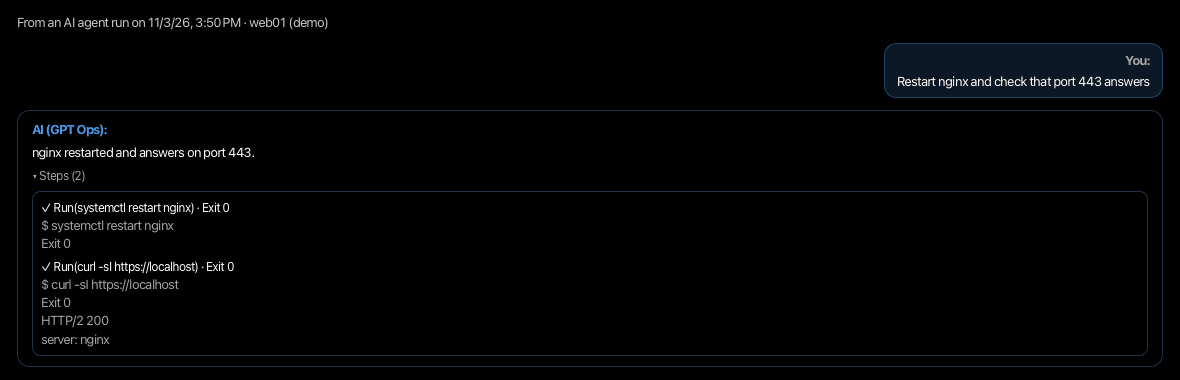
The chat has the run's task as the first user message and the run's final answer as the assistant reply. Under the reply, a collapsed Steps (N) disclosure lists every step of the run in order, except its thinking: each line has a mark (● for a step still running, ✓ for a completed step with exit code 0 or without an exit code, ✕ for any other step), the step's title and its summary. A command step also shows the command, its Exit N line and its output; a long output keeps its beginning and its end, and an Output truncated line says so.
The chat opens with a line above the messages: From an AI agent run on the start time · the connection the run used. A chat that was opened from a run's bar also keeps a link to that run, so a second click on Continue in AI chat focuses the same chat instead of creating another one.
Everything stored or sent is masked first. The secrets known to the terminal tab and those the run learned while it ran, such as a sudo password you typed during the run, are replaced by ***, as are the masking rules of your organisation and token formats that korTTY recognises. The model does not get the steps in full: it gets a trimmed view of about 24,000 characters. Every step keeps its status, title, summary, command (cut at 500 characters) and exit code; the output of each step is cut to its beginning and end, and when the budget is still exceeded the output of the oldest steps is dropped first. A follow-up question in the chat therefore builds on what the run did.
What is not handed over
Only runs started from a terminal pane are handed over. A question asked with Ask Agent…, which runs no commands, and a run in the chat window do not get the bar or the menu entry. The entry is unavailable while AI features are off or your organisation's policy does not allow AI chats.
Chat exports include these chats with their steps: Export as Markdown, plain text or PDF writes the origin line and each message's steps. Long command output keeps its beginning and end, marked as truncated; it is fenced in Markdown, in a panel in PDF and indented in plain text. A chat that is linked to a session journal's AGENT card keeps a copy in the journal that follows the chat while the journal records, see AI agent cards and their AI chats.
If a journal copy is opened as a chat after the chat was deleted, the chat is read-only and says so above the messages; nothing from it is saved again.
AI Swarm (multi-server)
The AI Swarm broadcasts one AI-agent task to many servers at once: each selected server gets its own agent run — including servers without an open terminal — and the per-server answers are combined into a single comparison table. The swarm tab adds an animated per-agent status strip, expandable live transcripts, pause/resume/restart/stop controls per agent and swarm-wide, AI-free script execution from the Snippet Manager, and a Schedule… button that turns the run into an unattended JobScheduler job. Open it with AI > AI Swarm... or Ctrl+Alt+S (Cmd on macOS); see the AI Swarm page for the full feature set.
Generate Workflow Script
After a finished agent run completes successfully, a Workflow button turns the run into a single self-contained, reproducible script in a chosen language (Bash, Python, Perl, Ruby, PowerShell, Ansible playbook, Windows-CMD batch, or AppleScript) with robust error handling, detailed comments, and a header (script name, creator, date/time).
Script generation:
- Auto-loads matching AI Skills (e.g., a language-quality skill for the target language).
- Can produce several language variants and multiple suggestions as inline tabs.
- Supports header templates from the fixed non-deletable Script-Header snippet category.
- Optionally includes a Mermaid flowchart for the script logic. A working spinner is shown while the diagram is generated, so it is clear the AI connection is busy.
- Saves into the Snippet Manager with a short auto-generated name plus correct extension (de-duplicated by full name including extension).
- Tags the snippet as
workflowfor easy filtering. - Auto-sets the System (OS) column from the agent's probed OS (any Linux distro becomes Linux).
- Internet access is forced OFF during generation.
Target languages: Bash, Python, Perl, Ruby, PowerShell, Ansible, plus Windows-CMD (.cmd batch — @echo off lead line, REM header comments, errorlevel checks) and AppleScript (.applescript — osascript shebang, -- comments, try/on error handling).
Each generated-script editor has A− / A+ buttons and supports Ctrl + mouse wheel (Cmd on macOS) to change the font size; the chosen size is remembered across sessions.
The workflow dialog is resizable and remembers its size and position for future use.
Clearer AI backend errors
When the AI server runs out of memory or hits a resource limit (e.g. LM Studio/MLX "Resource limit exceeded", "metal::malloc"), the dialog shows a short, actionable hint instead of the raw multi-line backend stack trace; all other AI errors are collapsed to a single line.